Gigabyte m1405 screen repair/replacement

So my nice 14in Gigabyte notebook has been humming along, until I picked up the satchel and it slid out – falling 50cm onto the floor edge first.

This caused a crack along the left most 10% of the screen. I lived with it for a week or so, then bit the bullet to replace it.

A place on ebay sold me a screen for $100 shipped from the USA. After doing the swap I see the part number indicated the same screen is used in some SONY and Dell notebooks, so if I break it again I’ll be using a $75 part. The part number is b140xw02 V.1 (You can buy one here from Amazon. Note I get a dollar or two if you use that link).

I couldn’t find any instructions online, so I began with a bit of trepidation. The key things to know if you are going to do this yourself:

– the screen can be replaced without disassembling any of the laptop base.

– there are four screws under the rubber plugs at the corners of the silver screen fascia.

– The silver frame can be unclipped very gently. I used guitar picks to carefully prise it forward.

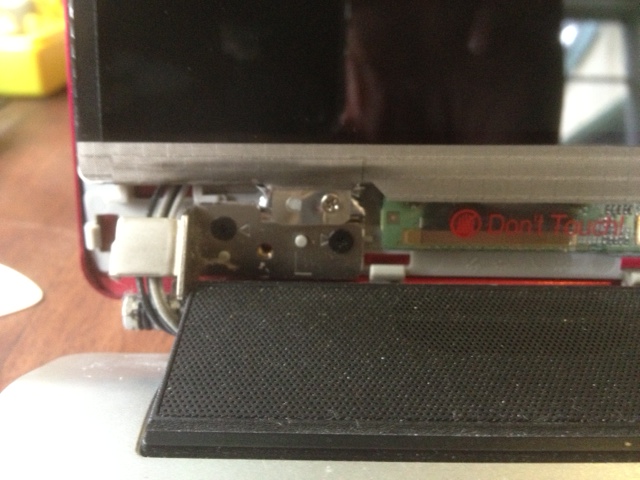
– The wedge shaped hinge covers can be removed by ripping off the mirror stickers on the outersides and removing a screw. I did this, but it may be possible to leave them in place if you are very careful.

– Once the front frame is off, there are only four screws holding the screen to the red metal lid.

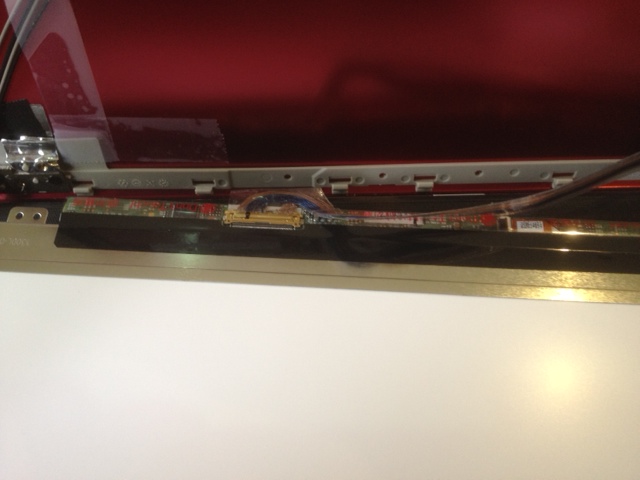
– The wiring harness just pushes into place with a piece of tape to hold it.

– Now put it all back together!

Just pull it free and push in the new one.
The silver screw is one of four holding the screen tabs in place. No need to remove the black ones.

Samsung CLP-300 bargain colour laser printer

Colour laser printers have a lot of benefits over inkjets, but the latest models have computer chip enforced toner contracts (so you can only buy expensive “genuine” toner). I picked up a Samsung CLP-300 2nd hand for $20 that allows generic toner. Low cost non-OEM cartridges are $20 per set on ebay delivered for 3 colours + black. This particular model, and it’s network enabled sibling the CLP-300N, suffer an annoying paper feed bug that means they are readily available for sale 2nd hand. The pick-up roller gets dirty/worn, and the paper feed fails, often sporadically. This link includes some instructions for fixing this error, and I’ve reprinted the key section below:

1- turn off and remove power cable;
2- remove paper drawer;
3- remove image unit – don not let it under sun light. cover it.
4- put the printer upside down;
5- look at the axle of the big central rubber roller:

5.1- you will see both sides have a plastic balancer and locker.
5.2- left one has a small “finger” that locks it from slide.
5.3- take your cellphone and do a photo of the present position of the axle and the pieces as you will need to remember it after.

6-light and carefully, lift this small finger from the axle and slide the locker half inch to the center;
7- after this, you have the axlee in a so so free way. You can move (rotate) it, if you lift and free the inside gear at left end;
8- at the central drum, there is two locks, one each side. If you release them, you can remove a type of a plastic shell with the rubber belt attached to.
8.1- to unlock the shell you need to rotate the axle and position the locks in a convenient way. So, rotate it again, and so, remove the shell.
9-I removed the rubber belt, washed it with water only.
when repositioning the belt on the shell, observe it and put in a different position, as the slick area fits inside the shell, so a new surface is out.
10- mount it a reverse order.

The pick-up roller itself is available as a spare part on ebay from around $9. Search for clp300 roller.

A 10 minute fix makes these good as new.

I also came across the service manual. It can be downloaded here.

High Interest Savings Accounts for Kids

So Bankwest offers the headline rate of 10% interest on their kids saver account. I’ve got kids who are of the age to get pocket money, so I chaecked it out.
There are some terms and conditions. Basically, you only earn 10% if you make deposits and not withdrawals, and only if each month you deposit between $25 and $250. After 12 month, the account resets to $1 (and the balance is shifted to a lower rate account).
You can’t start with more than $250, and you can’t deposit more than $250 a month.
So what looks pretty nice to start with, 10%!!, actually is somewhat less. If you had $3000 and trickled it in to the account to make the $250 a month maximum deposits, the total interest would be $167.56, or about 5.5%.
Of course, there is no reason you couldn’t keep that money in a higher rate saver account before you deposit, but most also have withdrawal penalties. If you used ubank for the balance, it would pay 6.0% on the declining balance. If you started with $3000 and transferred it into bankwest $250 a month, after a year ubank would pay you $82.50.
Obviously, both these deals are predicated on marketing – you will be ill disciplined in your payments, and once you have an account you will go on to use them for loans/mortgages/credit cards etc.
But if you are smart and organised, you can get a pretty nice return, a touch over 8%, or $250 interest a year on $3k. For me, I’ll be trying to scratch up $3000 to deposit in a kids name and see if we can achieve the rates suggested. I’ll post in a year or two to report back.

Gigabyte m1405 review

I purchased a nifty little laptop last month, and could find no review on the web, so I thought I would remedy that.

First up, my requirements. I need a notebook light enough to cart around on the train (I have a long commute) but with a big enough display to be able to do some work. A requirement I didn’t realise until last year is I need a Directx compatible video card to play a few undemanding games (Humble Bundle, I’m looking at you).

These were pretty well met with my BenQ u121, but it’s 11.6″ screen was on the smaller side, and the graphics chip was not up to scratch for the games I want to play once in a while (it did have awesome battery life and was super light).

I saw the ‘thin and light’ notebooks emerge a couple of years ago, and suspected one would be in my future – they have the feature set of past top of the range portables (I’ve had several Toshiba Porteges) but much less expensive by shipping a value processor.

The Gigabyte m1405 is one of these. You have probably seen Gigabyte before as a supplier of motherboards and other PC ‘guts’, but they seem to be new at complete laptops. The m1405 has a core duo chip, a generation behind intel’s current “i” family, but quite speedy compared to netbook Atom chips I had been using. Mine shipped with 2Gb of ram in a single DDR3 SODIMM, but there is a second slot free to install a 4Gb chip, which I expect to do soon.

The 320Gb HDD is on the smaller side, but it is a standard esata, so can be upgraded later if it gets cramped. Note it has some odd partitioning – there is a Windows 7 32-bit install, a separate Win7 64-bit install and a third partition for data. This is to allow you the choice to boot into 32 or 64bit windows, should you need to for compatibility reasons. Except for an old laser printer, everything I have tried has been fine in 64bit, so I plan to scrub the 32bit partition and reclaim the space.

This 32/64bit dual personality could be quite handy, though, if you have something you need to run under 32bit regularly. Another curious feature is the USB/eSata port on the right side. It accepts either cable, although I have yet to use it with an eSata drive. The system also powers the USB ports while asleep, allowing a phone or ipod to charge, even if the laptop is unplugged (you can configure a lower charge percentage when this will stop, say 50%, so your phone won’t drain your laptop if you mistakenly leave it charging via USB but not plugged into the wall).

Nice to have features are 3 USB ports (but all on the right side, urgh!) HDMI and VGA out, SD multi card reader, 1.3mb webcam and a fingerprint reader. I’ve been using the last for my Windows login (as opposed to no password) and it is fairly reliable once you have learnt the speed it likes to read at.

Battery life is a little over 3 hours with a 3G wireless stick in use, and the unit is a nice, light 1.6kg – not bad for a 14in screen and built in DVD writer.

There is a slot and internal antenna for a 3g wireless modem, but I haven’t played with this, similarly, there is a second battery available to replace the optical drive, but the only source I have found so far wants $150 for it, so I’ll pass. The accompanying documentation and original press releases show a nifty docking station which in meant to hold an nVidia graphics card – the idea being you can play demanding games when you are docked to a bigger monitor. I like the idea, but as far as I can tell, the device never got released to retail (correct me if you find one!).

In the box comes a fake leather slipcase and a screen cleaning cloth (the screen is shiny and does pick up prints). It has a 3.42a 18v 110-240v universal power supply, the same type used by BenQ and Acer laptops we have around, and readily available as a non-OEM purchase for about $20 on ebay. The outer case has a bright red metallic surface on top, with sort of a brushed matte finish – quite attractive, but a matter of personal taste. The underside is matte black plastic and the screen and keyboard bezel are brushed aluminium. Build quality is good, and the unit feels solid, but the aluminium bezel is not precisely flush around the base so it flexes a little bit. Not a big drama.

The keyboard is fair. It is close to full size, but the keys aren’t raked at an angle, they all sit flat, and they don’t have much travel. There are real home, pgup and pgdn and arrow keys, a pet hate of mine is when these are lost to function keys.

The built in speakers are quite good, as these things go, and boast some sort of THX signal processing. The result is they are loud enough to use for watching a DVD, a feature not always good enough on many notebooks.

Overall, I find this a great laptop, and extremely good value. I could be convinced to add a second battery if the price was more reasonable, but the current power is adequate. It is pretty snappy with Win7 and the plethora of little value add features make it a nice versatile machine. The screen is nice and large for a very portable machine.  I got mine at http://www.onlinecomputer.com.au for about $500, but I have seen them since for $50 less on Catch of the Day.
BenQ u121 Eco Joybook and Option GTM378 – playing nicely now

So my new netbook is a BenQ u121. It has a lovely 11.6″ screen, 2GB RAM, 250GB HDD and great battery life, all in a 1.3kg package. In a step forward for the environment, it also uses the same power supply as my old Acer netbook, so I didn’t need to buy an extra one (19V 3.42A)! A bargain at $399.
In Australia, these machines don’t come with 3G installed, as they do in some markets, but under the sticker that says removing it voids my warranty is a mini PCI-E slot laying empty along with two antenna pigtails. Talk about taunting me.
The problem is, there is almost no information about making use of it. I followed some tips from a forum around installing a 3G modem on an Acer netbook, and figured I would give it a go.
A trip to Ebay got me a second hand Option GTM378 3G modem – it does HSDPA at 7.2Mbps on a bunch of network frequencies, including the Voda/Optus and Telstra ones. $50 and a 7 day airmail trip from Hong Kong and it was mine.
Plugged it in and XP recognises the device. Pointed it to the drivers downloaded from Option’s site (version 4.0.17.0) and … nothing happens. Installation fails with a message stating appropriate drivers couldn’t be found.
Very aggravating. I spent several hours searching and trying different things, to no avail.
I even emailed Option support, although they publish no contact details and claim to offer no end user support, just OEM. Needless to say, no reply.
Eventually, I tracked down an older driver – version 3.313 and like magic it works. So, thumbs down to Option’s support and website for providing the wrong drivers, but a big thumbs up to BenQ for supporting on board 3G!